Allocator — splitting money across strategies
In one paragraph
An allocator splits one exchange account into virtual wallets, one per strategy. Each strategy trades only inside its wallet, so its wallet is its maximum loss. On each rebalance cycle the allocator code decides "what % for which strategy" and the wallet targets follow. A strategy above target returns money as it sells on its own (no forced sale; futures once flat); one below target is filled in order. The allocator never places orders — it only sizes the money; each strategy does its own buying and selling.
Four words
| Word | Meaning |
|---|---|
| Code | The allocate(ctx) function holding your rule. Saved like a strategy (no money or agent attached). |
| Deployment | That code running on your agent as paper or live. The same code can be deployed many times. |
| Member | A strategy you put in a deployment. Each gets two parts — a paper side (always runs with the same amount and builds a track record) + an upper layer (the part the allocator funds). |
| Cell | One (exchange · account · wallet · currency). Created wherever members trade; each cell has its own unallocated wallet. Money never moves between cells (no withdrawal permission; USDT ≠ USDC even on one exchange). |
- A member given weight 0 keeps its paper side running — the evidence to raise it again keeps accumulating.
- In a paper deployment the upper layer is simulated live (live-style decisions, fake money); in a live deployment it is live. Both behave the same, so a paper deployment is the way to check first. The difference between paper, simulated live and live is in the Paper · simulated live · live table of the quick start.
Where to click
1. Write the code — Strategy Studio (/trading/backtest), [Allocator] mode at the top → [+ New allocator code].
2. Deploy — [Deploy] on the code card: paper or live · agent · rebalance cycle · member amount per currency. You do not pick an exchange or currency (members decide the cells).
3. Add strategies — [+ Add strategies] on the deployment row — pick from your strategy list (not running runs). Add more any time; [Remove] takes one out.
4. Fund it — upper layers start empty and are filled from the cell's unallocated wallet. Move money into it on the wallets screen (/trading/wallets) (paper deployments: fake money in the simulated-live account).
5. After editing the code — running deployments keep the code they were deployed with. When a deployment row shows "New code rev N available", press [Deploy new code] to switch that deployment only (live deployments ask once more). Portfolio backtests run the latest code, so you can test before applying.
6. Watch — runs screen (/trading/runs), [Canvas] view: allocator → cells → members, next rebalance time, pending returns/reservations, [Rebalance now]. Solid lines are money flow; dashed lines are pairs (the same strategy's paper side — no money moves).
7. Try it on history — Portfolio backtest on the same studio screen: one allocator + several of your strategies on past data.
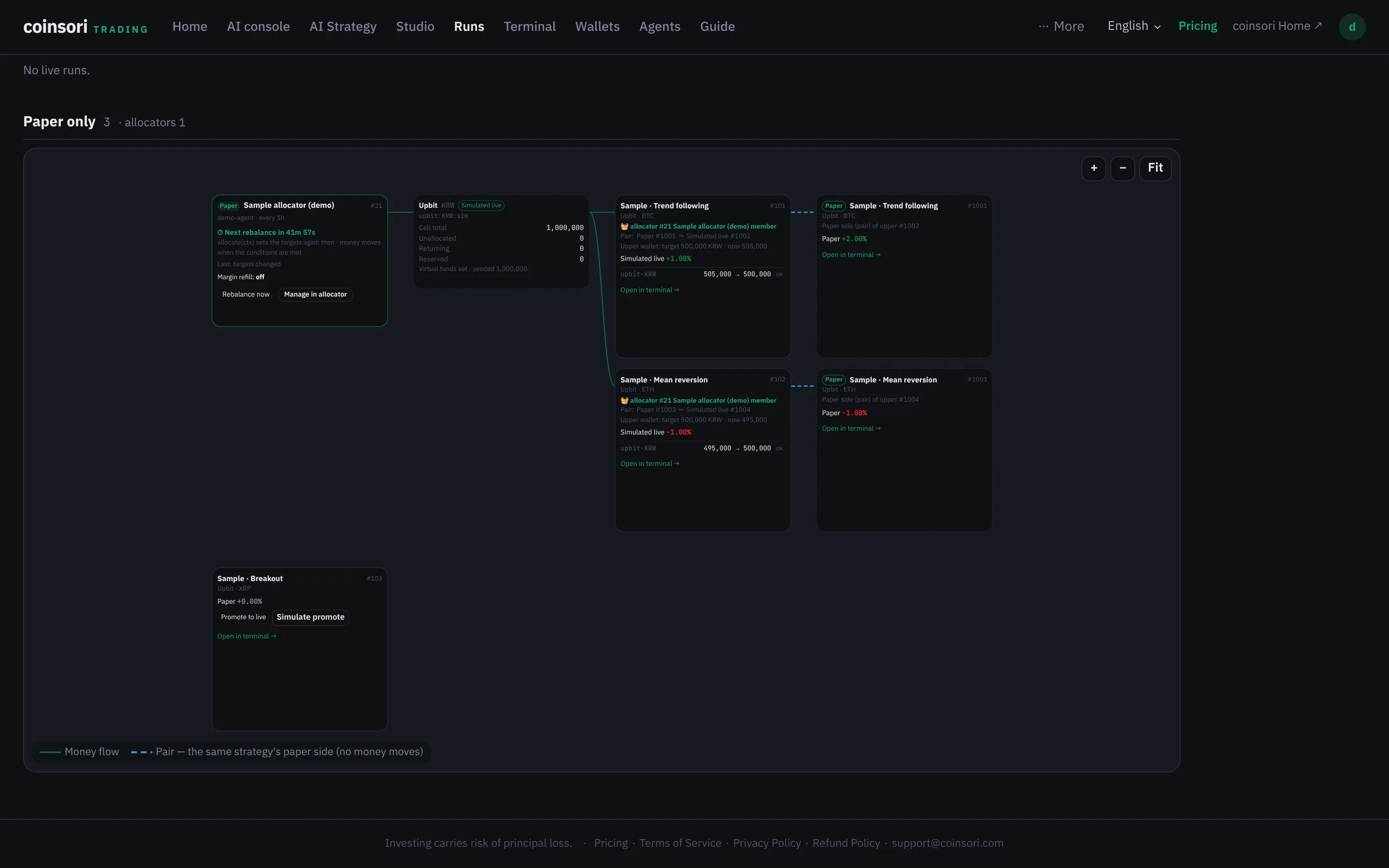
First time
- Start with a paper deployment. Live deployments and live members are switched on by the user in the web app (an AI connector can only create paper ones).
- Adding a member moves no money right away — it is sized at the next rebalance. [Rebalance now] if you want to see it immediately.
- When you add a strategy, it is backtested fresh up to today and that curve (its history) is handed to the allocator — so there is something to judge by even before the deployment has a track record. The member row shows the history state (preparing / failed); if the first history fails, the member is removed and the reason is kept.
- A strategy whose latest lifecycle verdict is fail, and which has not been edited since, cannot be added as a member.
- If targets change only a little (default under 5%), that cell is skipped for the cycle. "Nothing moved" may not be a fault — check the last result on the canvas (applied / skipped / refused, with the reason).
- If the code returns an invalid output (over 100% in a cell, negative…), that cell stays as it is — it is not normalised for you. The reason is in the log and on the canvas.
- Margin refill (futures members) is off by default. Turning it on changes "wallet = maximum loss" into "wallet + refill cap"; the screen shows the new maximum loss as a number and asks you to confirm.
Writing the code yourself or with an AI
The code contract (shape of ctx, return values, checks) is in the developer document — get_allocator_docs for AI connectors, or /llms/allocator.txt with a token. We do not recommend allocation rules. Example code shows syntax only.
soritrading does not provide investment advice. Returns are not guaranteed and you can lose money.