Local agent
Backtests, paper and live all run on a local agent on your own machine. Keys, signing and order submission all happen inside it. The PC you use now is fine; for paper and live that must run 24/7, a VPS is recommended.
Where should the server live?
Pick a region close to the exchange you trade on — order round-trip time is fill quality. E.g. Korea (Seoul) for Upbit-heavy trading, Japan (Tokyo) is generally favorable for Binance.
Orders go from the agent directly to the exchange — they never pass through soritrading servers, so added latency from soritrading is zero (a side effect of the non-custodial design). Your server location determines purely the agent↔exchange distance.
Install
1. Issue a pairing code in agent management (one-time, expiring).
2. Paste the one-line install command shown there — a terminal command for Linux/macOS and a separate PowerShell command for Windows. The pairing code is already inside the command. On Linux/macOS it registers a service (systemd/launchd) that comes back after a reboot.
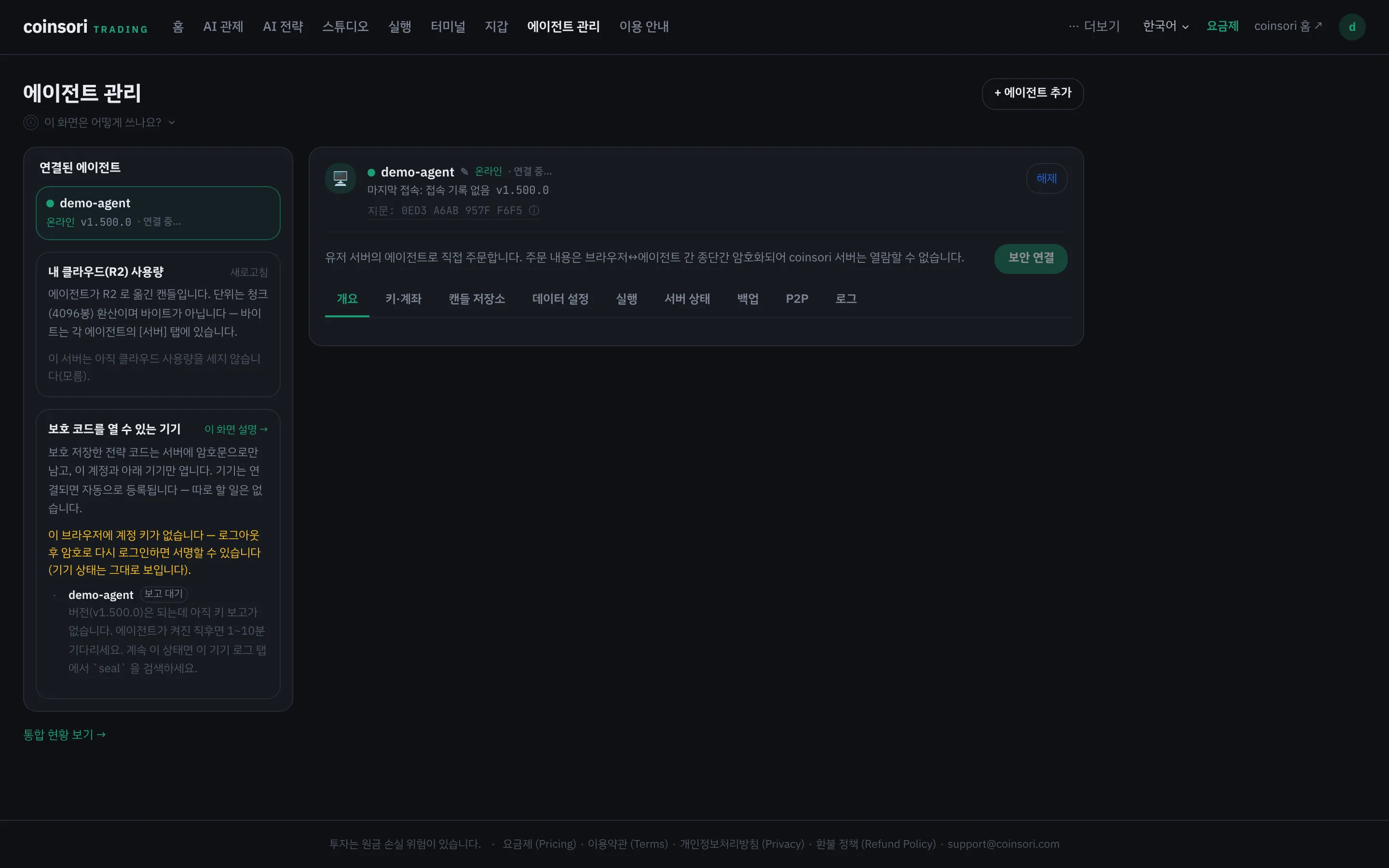
3. Once connected it appears in the agent list right away and shows online.
First time setting up a server? Server setup guide — screenshots for the whole flow: create a server on Amazon Lightsail and paste the install command via browser SSH (about 15 minutes).
Updates
Press [Update] in agent management and the agent verifies the release signature itself, swaps in the new version and restarts. If the signature is missing or wrong, or the version is lower than the current one, nothing changes. If live runs are running it asks once more, since a few seconds of restart can miss a signal. Older versions and some setups that do not know the button are told to run the update command once.
Automatic rollback on boot failure (agent 1.451.0+): if a new version keeps dying while starting up, the agent rolls itself back to the previous version. Agent management shows what it rolled back from and to and the first line of the boot error, and that version is skipped by automatic updates — it moves on when a newer one is released. This is a recovery, not an outage: runs continue on the previous version.
Candle store
Bars for backtests are downloaded by the agent straight from the exchange into the candle store on your machine. If a symbol has disappeared from the exchange (presumed delisted) or the exchange does not provide that interval, it is shown as 'cannot collect' with the reason.
Shared cloud storage: paid plans can upload the chunks they collected, and free plans can 'link only' to identical chunks already in the cloud, within the default-collect exchanges (nothing new is uploaded). Chunks whose cloud copy has been checked are cleared from your machine to save disk.
Forex (MT5)
Forex has no API key. Your broker's MetaTrader 5 runs on the same Windows computer (or Windows VPS) as the agent, and the SoriBridge EA attached in the terminal talks to the agent only inside that machine. Your broker login never leaves MT5. Install (the Windows one-line installer adds the EA) → MT5 options → attach the EA to one chart → put symbols in Market Watch → add them to the candle store → paper → demo account → real account. Step-by-step: Forex (MT5) setup. One terminal (account) per run — you can pick several of its symbols. Caps, starting cash and P&L are in the terminal's account currency, and deploy is blocked (naming the symbol) when the per-order cap is below any symbol's minimum lot (e.g. 0.01 lot of EURUSD ≈ 1,000 EUR of exposure).
Fingerprint check
The same fingerprint appears in both the web UI and the agent console. If they differ, suspect MITM — don't enter keys (the key form hides itself on mismatch).
Registering API keys
Register exchange keys in the agent details. They travel as E2E ciphertext and are stored encrypted only on the agent's machine. Keys without withdrawal permission are the default, and where the exchange can be asked, keys with withdrawal enabled are rejected. Exchanges that cannot separate withdrawal are accepted only after a warning and your consent, and decentralised exchanges use a delegated key first — seed phrases are never accepted (details in Security). To skip the web entirely, enter keys directly on the server with the agent console command.
Some futures exchanges need a connection test (order round trip) before live — your agent checks the order path with a minimum-size real order, and once it passes on mainnet that account can trade live right away. Changing the key means testing again.
Operating
- Default is dry-run. Live orders are turned on from the web over E2E.
- Deploy from the studio; stop, promote, demote and view logs from runs and the dashboard.
- When the engine changes (an update changes the backtest engine), running runs show an 'engine changed' badge. The same backtest window is re-run automatically; if the result (fills and metrics) is the same the warning clears, and if it differs you see the difference and [Accept new engine] waits for you. If it cannot decide automatically it says so — then check with a backtest yourself.
- If the agent is offline, the UI says so — it never pretends to be online.
Uninstall — no traces
By design, the agent never becomes an un-removable resident program. It installs only to standard locations (no kernel extensions, no root daemons) and removes cleanly with one line:
curl -fsSL https://soritrading.com/dl/uninstall.sh | bash
It finishes in one step: releases the server-side pairing, unregisters the service (systemd/launchd), deletes the program folder and the pairing data (~/.soritrading-agent). It prints exactly what was removed, and nothing is left on this machine — you don't need to visit the web "Agents" panel afterwards (the row disappears there too). If it can't reach the server it says so — only then remove it from the web. The Windows uninstall command is in agent management.